Formatting Text and Variables
Plenty of strings are not fixed text. A greeting carries a name, a counter changes wording depending on the number, and a sentence has one word in bold. These need to be marked up rather than typed out, so developers get a string they can actually use and translators know which parts move.
Everything on this page happens in String details, which you open from the more button on a string's row.
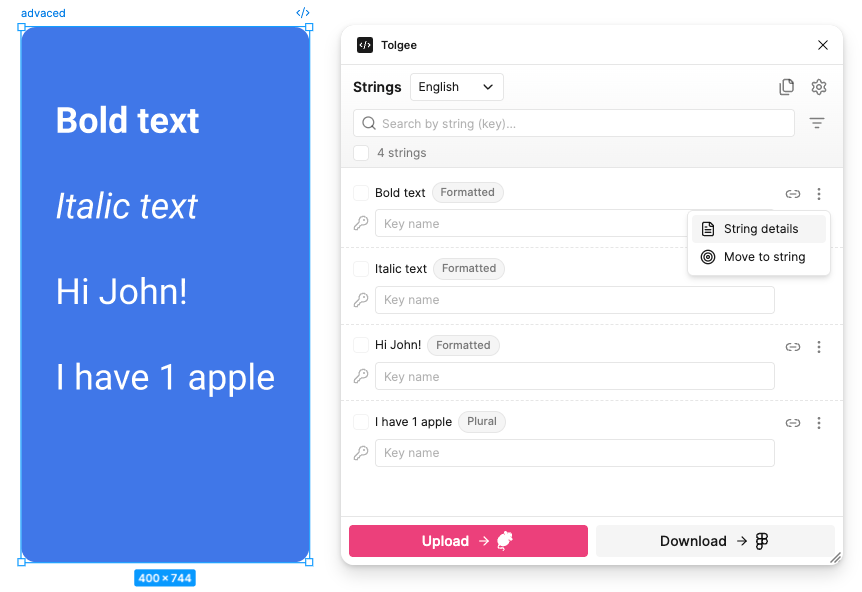
Text Formatting
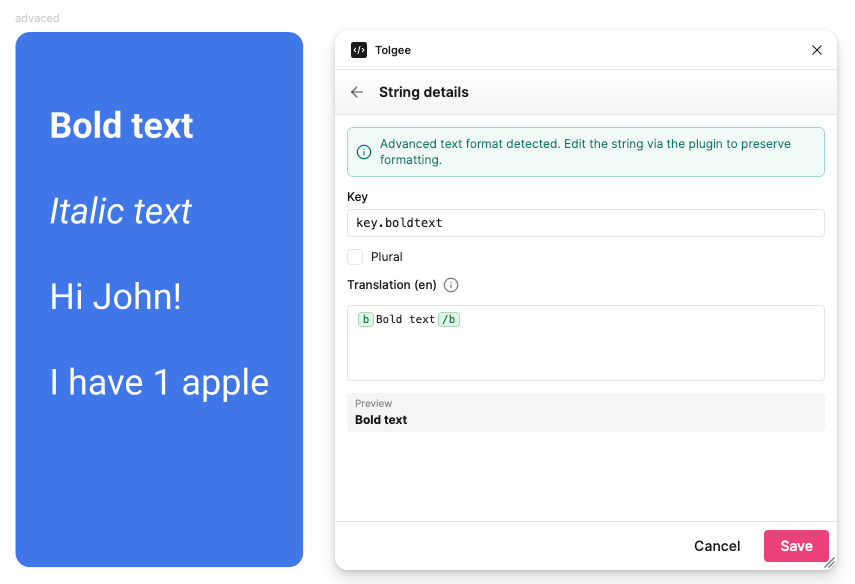
The plugin understands basic HTML tags and renders them as real formatting on the canvas.
<b>or<strong>for bold<i>or<em>for italic<u>for underline<br>for a line break
This works in one direction only, from Tolgee into Figma. If you change the font weight or decoration of a connected text using Figma's own controls, the plugin does not read that back as formatting.
Variables
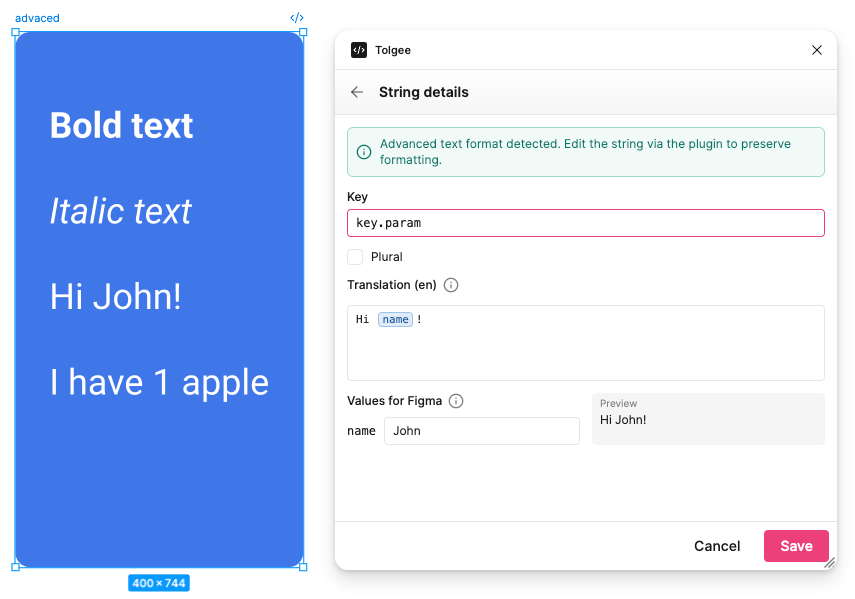
A variable marks the part of a string that gets filled in at runtime, such as a user's name. Write it in the translation field using the ICU syntax you already know from Tolgee, for example Hello {name}.
The variable travels with the key, so it shows up on the platform and developers can see exactly what the string expects.
Values for Figma
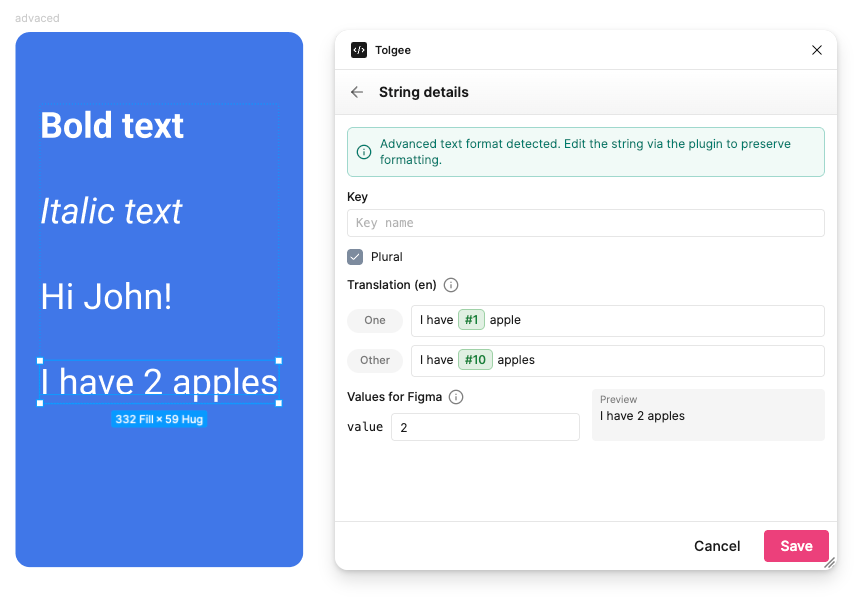
A design showing Hello {name} tells you nothing about whether the layout survives a long name. Values for Figma is where you give each variable a sample value, and the canvas then shows that instead of the placeholder.
These samples are for the design only. They are never uploaded as part of the translation.
Plurals
A string whose wording depends on a number is a plural, not a variable. Tick Plural in String details and you can write a separate text for each form, typically one for a single item and one for several, with an optional form for zero.
Write # wherever the number itself should appear.
As with variables, the sample count you set under Values for Figma decides which form the canvas shows, so you can check each one against the layout.
Sometimes the Plural checkbox is locked, with a note saying you cannot change it here. That means the key is already defined as a plural, or not a plural, on the Tolgee platform, and the plugin will not override that. Change it in Tolgee and the plugin follows.
Editing Advanced Strings
A string with a plural, a variable or formatting carries structure that plain text does not. When you open one, the plugin points this out with a note saying an advanced text format was detected and asking you to edit it through the plugin rather than on the canvas.
The reason is that the canvas only holds the rendered result. Typing over You have 3 messages directly in Figma replaces the whole plural with a fixed sentence, and the structure is gone.
Recovering a String Edited on the Canvas
If it happens anyway, the plugin catches it. The row shows a crossed-out pen marker, and opening String details explains that the string was edited in Figma and no longer matches its formatting.
Click Revert string in design to restore the canvas text from the version stored in Tolgee, with its plural or variables intact.
Plain strings are not affected by any of this. Editing an ordinary text on the canvas is a normal change, and uploading sends it to Tolgee like any other edit.