Usage Guide
Designers and developers usually work from different sources of truth. The wording in the design file doesn't match the wording in the code, and translators only see the result once it ships. The plugin closes that gap by connecting the text in your designs to translation keys in Tolgee.
If you have not connected the plugin yet, start with Setup and Settings.
The Strings List
Everything the plugin does applies to what you have selected on the canvas. Select one or more frames, or individual text layers, and the plugin lists the strings it found.
A large selection makes that list harder to navigate and slows the plugin down, so it is usually better to work through one screen at a time.
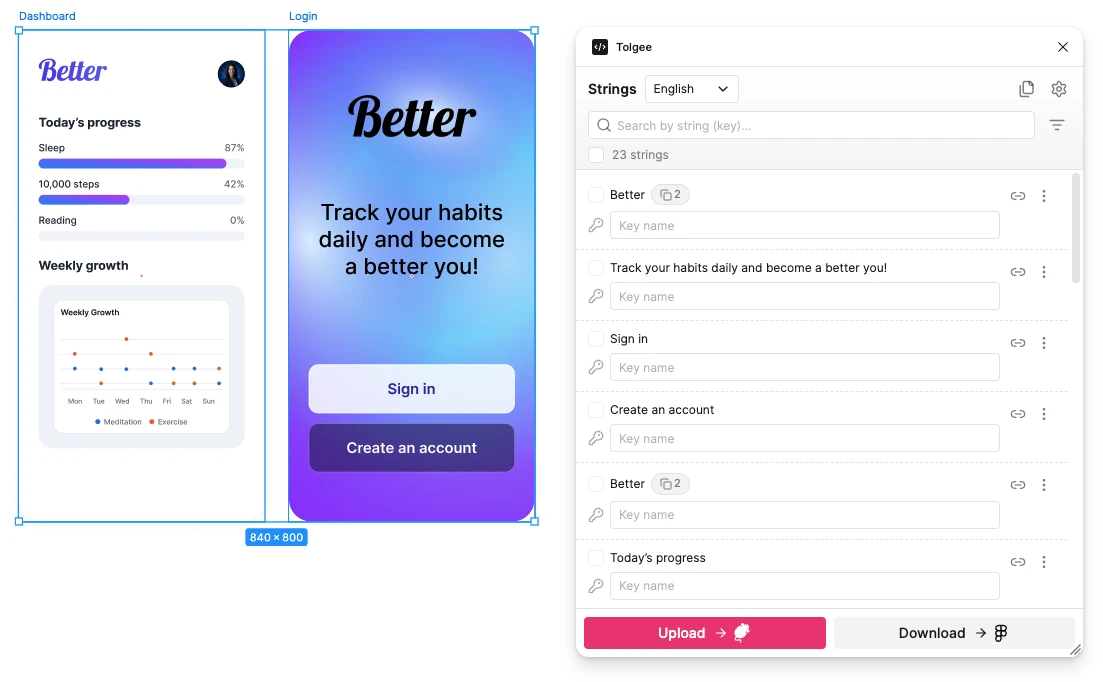
The Header
Above the list sit the controls that apply to everything below it.
- The language selector shows which language you are looking at. Changing it opens the download screen for that language
- The branch selector appears when your project uses branching. It decides which branch uploads and downloads target
- Create page copy builds a translated or key-name copy of the page, covered in Page copies
- Open settings takes you to the three settings tabs
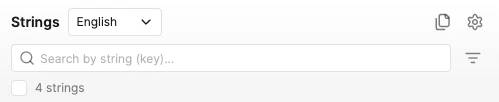
Search, Filter, and Select
Between the header and the list sit the controls for narrowing it down and acting on more than one string at a time.
- Search and Filter narrow the list down, covered in Searching and Filtering
- A count of how many strings are currently shown sits above the list, next to a checkbox that selects or deselects all of them
- Checking any row's checkbox replaces the
UploadandDownloadbuttons at the bottom with a menu of bulk operations
Reading a String Row
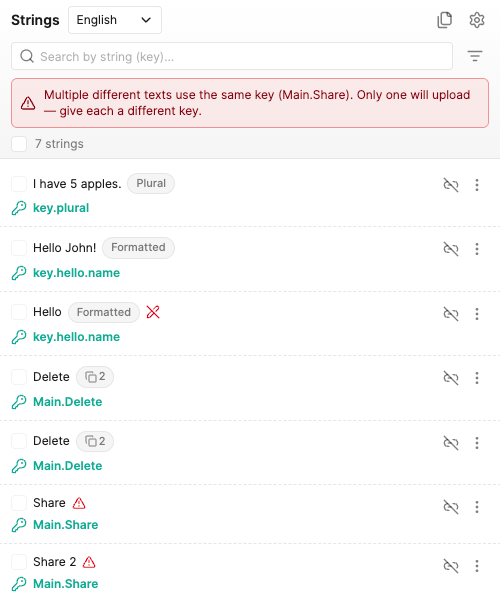
Each row is one text on your canvas, and the key field tells you where it stands.
- A connected string shows its key name, and when your project uses namespaces a second field beside it holds the namespace. Both are read-only while the string is connected, because they are set in Tolgee
- An unconnected string shows an empty key field waiting to be filled
- A key in red means the string is connected to something that is no longer there. Hovering it says
This key is no longer in Tolgee, which usually means the key was deleted or renamed on the platform
A Plural or Formatted chip next to the text itself means the string uses plurals or ICU variables and markup, covered in Formatting and variables.
A row can also carry one of these badges, and each one explains itself on hover.
- 2 means that many layers in your selection share the exact same text. Click the badge to filter the list down to all of them
- means several strings share this key name but have different text. Only one of them can be uploaded, so click the marker to filter the list down to exactly those strings and sort them out
- means a string with a plural, a variable or formatting was edited directly on the canvas, so its formatting no longer matches. Open
String detailsto fix it, which is covered in Formatting and variables
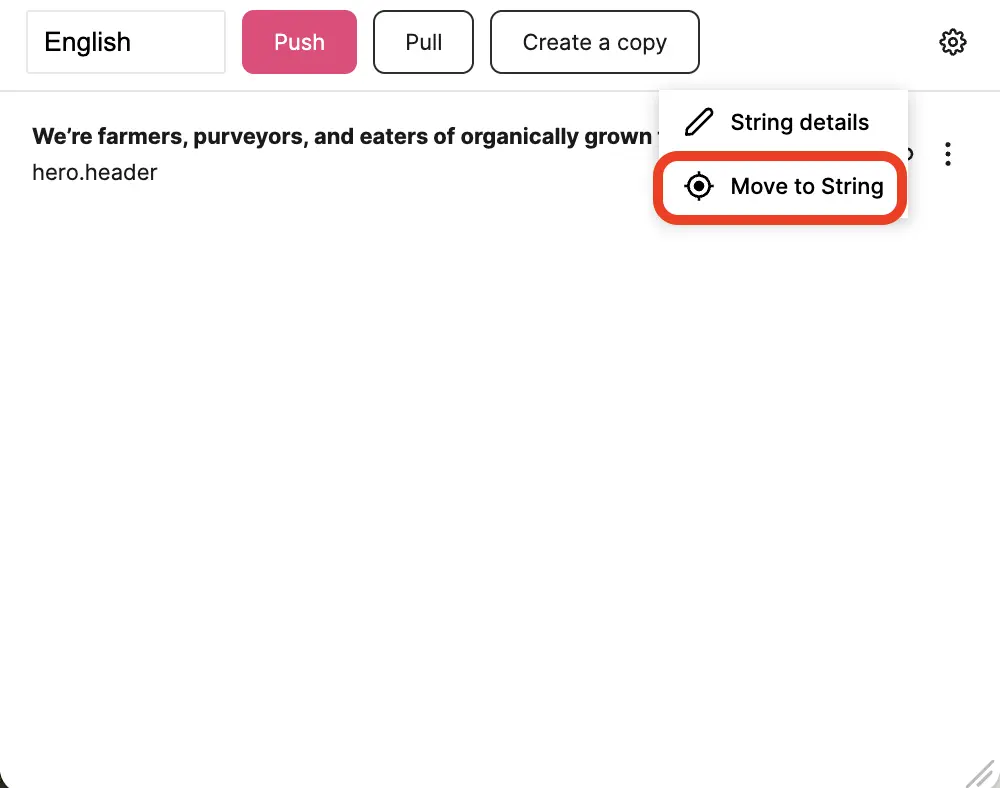
Row Actions
The more button on a row opens the actions for that one string.
String detailsopens the editor, where you can rename the key, edit the translation, and work with plurals and variablesMove to stringscrolls and zooms your Figma view so the text is centred on screen. This is the fastest way to find a string you only know by its keyConnection detailshows what the string is connected to, and appears only for connected strings
Resizing the Window
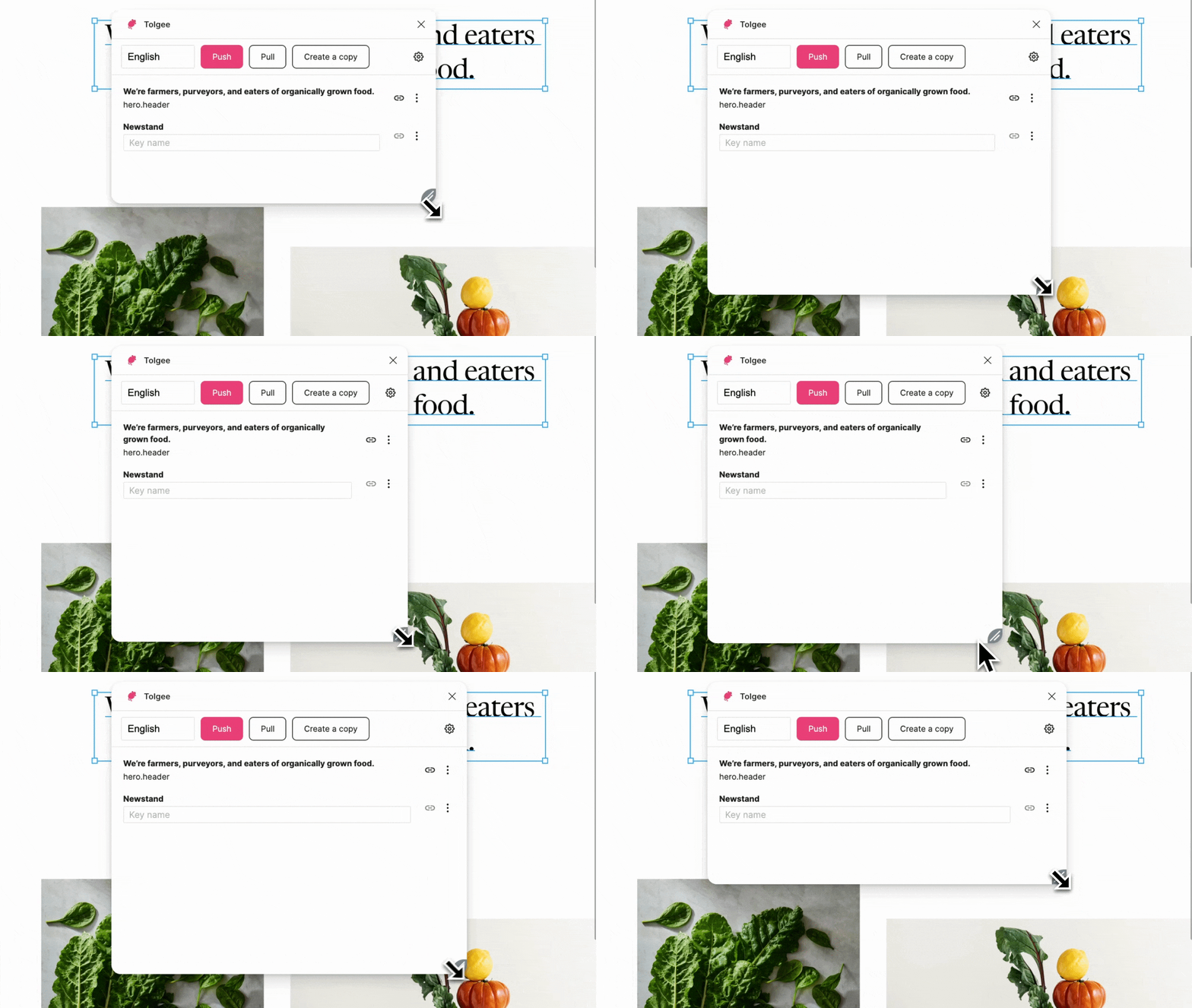
Long lists are hard to work with in a small panel. Click and hold the icon in the bottom right corner to resize the plugin window.
Searching and Filtering
A busy screen can produce a list far longer than the panel, so two controls narrow it down.
Search matches both key names and the source text, which means you can usually find a string by typing the words your design already shows.
Filter works in two layers. The first is connection status, and each option shows how many strings it covers.
AllConnectedNot connectedMissing in Tolgee, which appears only when some connected key no longer exists on the platform
Under that you can narrow to one subset at a time.
Pluralfor strings with plural formsFormattedfor strings carrying variables or formattingSame stringfor texts that appear more than onceSame key (conflict)for the clash described above, where one key name covers different texts
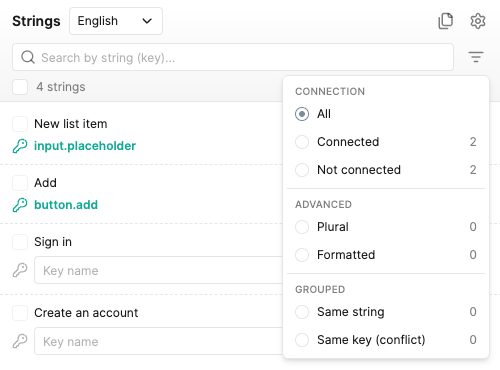
When your project uses namespaces, you can also filter by one or more of them. Every active filter shows as a chip you can remove individually, and Clear filters resets everything.
Connecting Texts to Keys
A text has to be connected to a key before it can be uploaded or translated. There are two situations, and they work differently.
The Key Does Not Exist Yet
Type the name straight into the key field on the row. If you turned on Prefill key name during setup, a name is already proposed and you can accept or edit it. For advice on choosing names, see naming translation keys.
The key itself is created in Tolgee when you upload.
The Key Already Exists
Sometimes the key is already in Tolgee but the text in Figma does not know about it. Connecting the two is what lets the plugin keep them in sync from then on.
Click the link icon on the string's row.
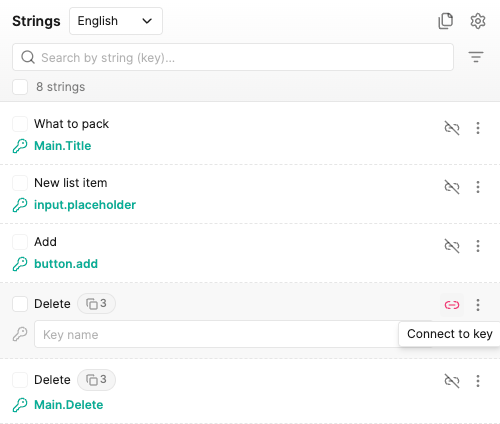
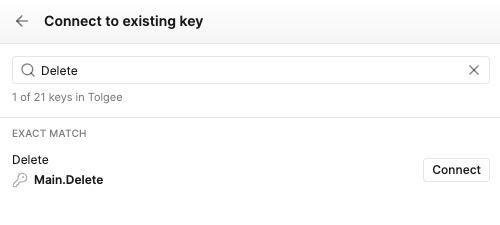
Search for the key you want and click Connect next to it. The search looks at key names and source text alike, so the words in your design are usually enough to find it.
To break the link, click Disconnect on the row. The text stays on the canvas, it simply stops being synced.
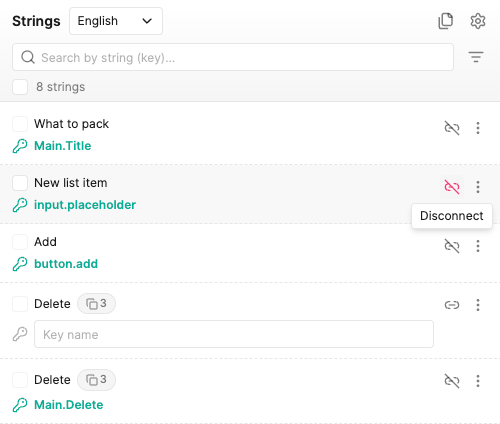
Doing this row by row is fine for a handful of strings. For a whole screen, bulk operations can name, connect and disconnect many strings at once.
Uploading to Tolgee
Uploading creates your named texts as translation keys, so developers can reference them in code and translators can start work.
- Click
Uploadto review what will be sent - Check the
Upload screenshotsoption, which is on by default and controls whether screenshots are created or refreshed - Click
Upload to Tolgee
The review screen splits everything into New, Changed and Unchanged, so nothing is sent before you have seen its effect. When a key is listed as changed although its text looks identical, the plugin explains what else will change, such as a tag being added.
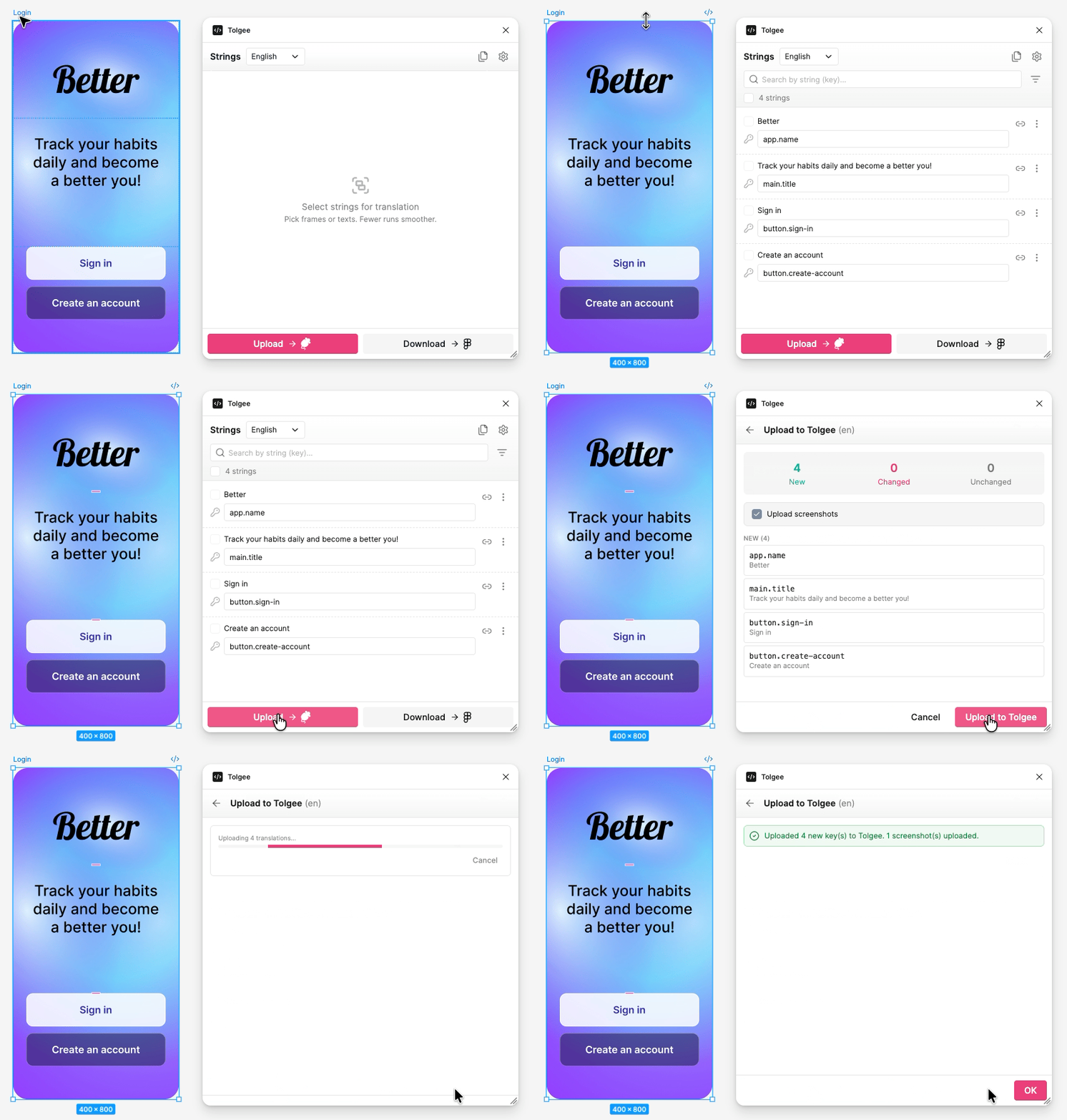
The plugin uses Figma frames to decide what a screen is. If screenshots do not come out right, check that each screen is wrapped in a frame. When a string appears in several frames, the top-level one is used.
When Tolgee Already Has a Different Translation
If a translation was changed on the platform since you last synced, the plugin does not overwrite it silently. It stops and shows you both versions side by side, the one from Figma and the one from Tolgee, and asks what to do with each key.
Overridereplaces the Tolgee translation with the one from FigmaKeepleaves the Tolgee translation alone and skips that keyForce overridereplaces it even when the platform has the translation marked in a state that normally protects it, such as reviewed
Choose per key, then click Apply resolutions to continue the upload, or Cancel to abandon it.
Downloading Into Your Designs
Seeing your layout in German or Japanese is often the fastest way to catch a text that will not fit. Select a language in the header and the plugin opens the download screen for it.
Before anything is written to the canvas, the screen summarises what will happen.
Changedlists texts that will be updatedMissinglists connected keys with no translation in this language, or keys that no longer exist in Tolgee. They are shown so you know about them, and are never overwrittenUnchangedlists everything already up to date
Click Apply to write the changes, or Cancel to leave your designs untouched. Choosing a language is only a preview until you confirm, so cancelling also leaves your saved language as it was.
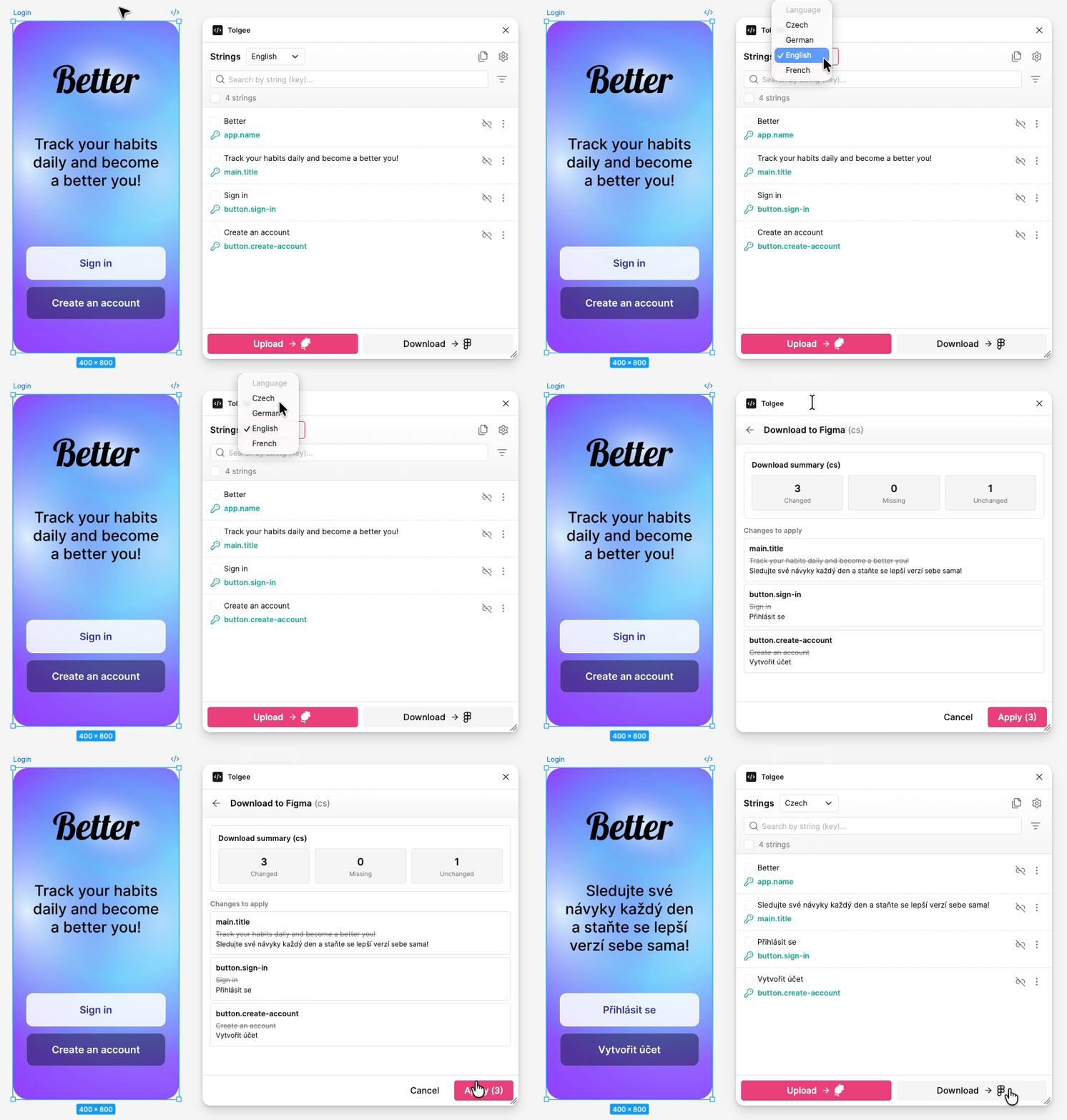
Because Missing lists every key with no translation yet, this screen doubles as a quick way to spot translation gaps before a release.
Downloading follows your selection in the same way uploading does. With layers selected only those are updated, and with nothing selected the plugin offers to update the whole page.
Dev Mode
Developers open the file to read specifications, not to change the design. In Figma's Dev Mode the plugin runs read-only, and anything that would write to the canvas is unavailable, so a layout someone else is still working on cannot be disturbed.
The row menu drops String details, because editing a string would write to the canvas, and adds actions aimed at reading and reuse instead.
Move to stringscrolls and zooms your Figma view to the text, the same as in design modeConnection detailshows what the string is connected toCopy keyputs the key name on your clipboard, ready to paste into codeCopy stringcopies the text itselfOpen in Tolgeeopens that key on the platform, where you can see all its translations
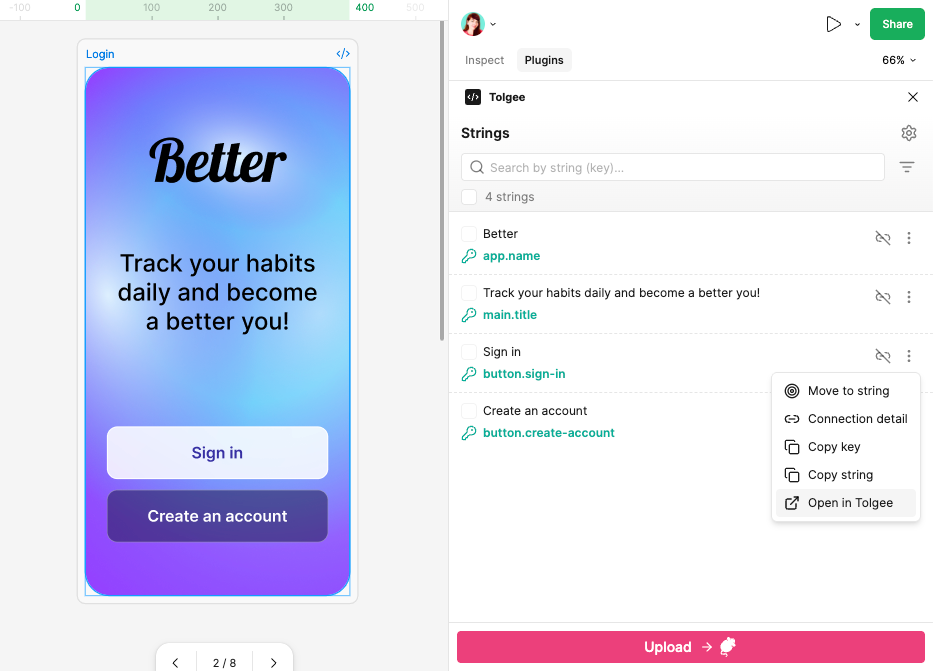
Uploading still works, because it writes to Tolgee rather than to the canvas. Downloading is hidden, and page copies can be read but not created or rebuilt.